
License Activation in Pipeson Data Manager v4
To activate or renew your license, you need an internet connection and a valid license number. Your license number is provided in your license agreement.
Note: When you start Data Manager for the first time after installation, the activation window opens automatically.
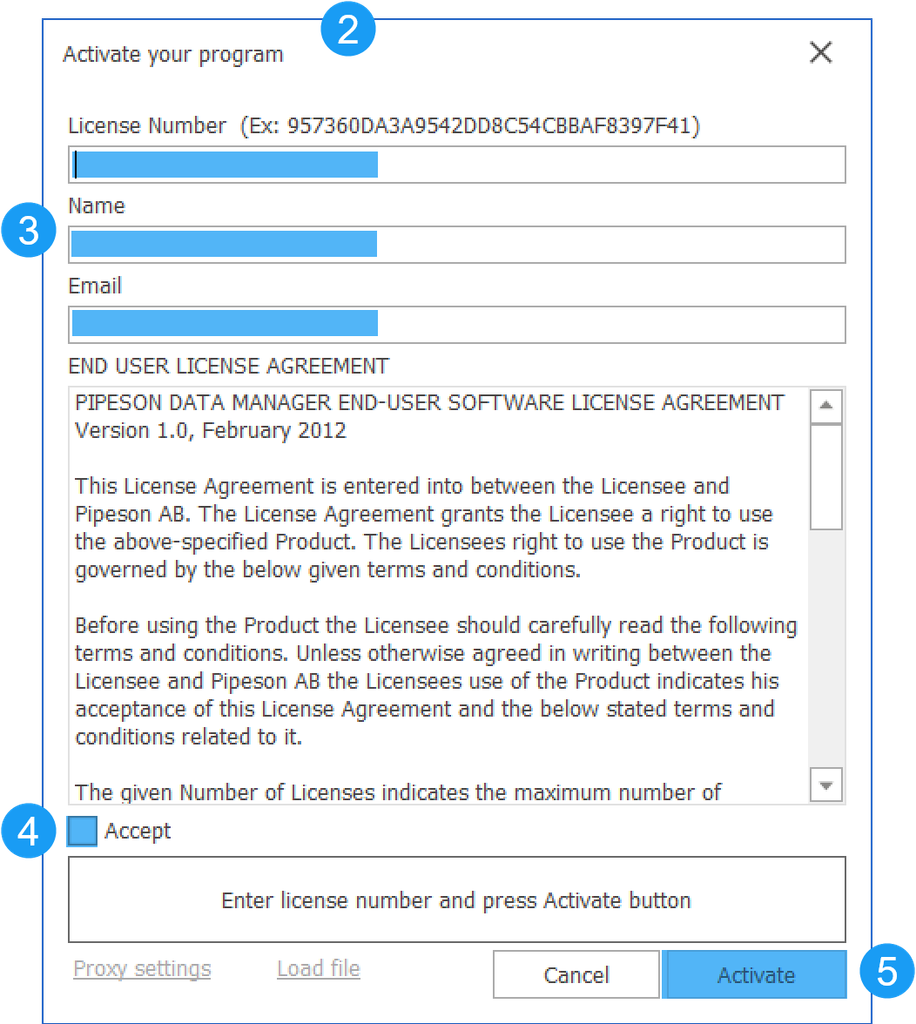
Activating a new license
- Start Pipeson Data Manager.
- The Activate your program window opens automatically.
- Enter license number, your name and email address.
- Read the license agreement and select Accept.
- Click Activate to complete the activation.
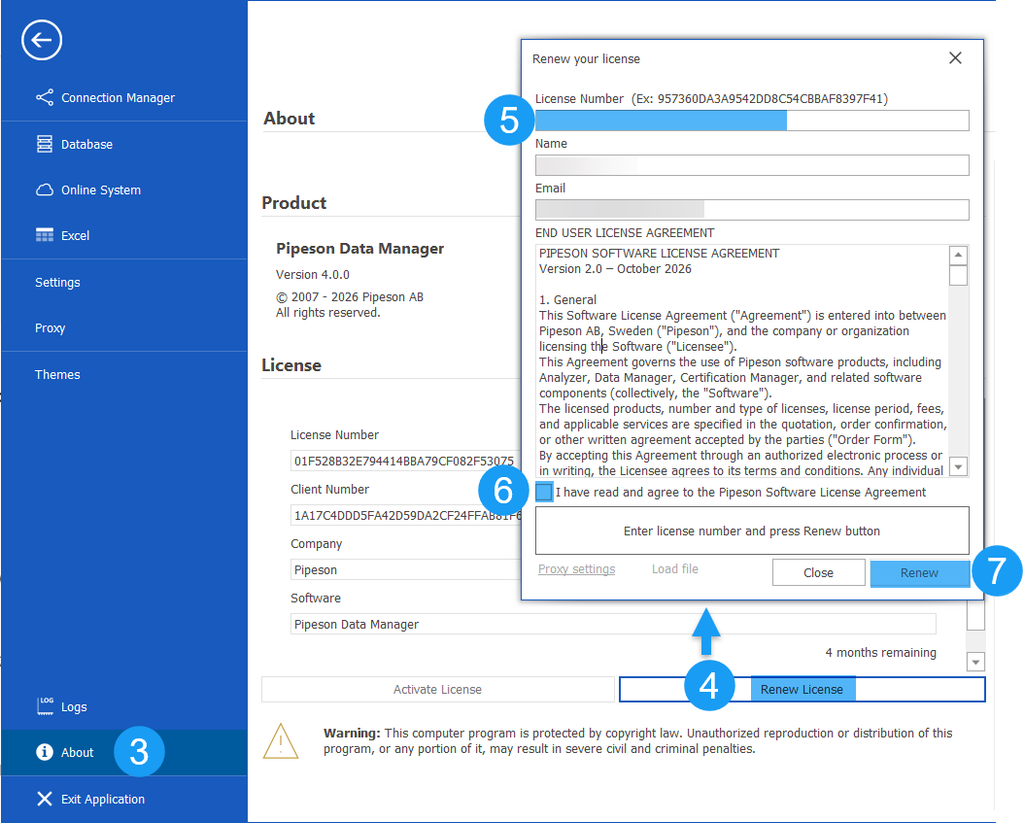
Renewing an existing license
- Start Pipeson Data Manager.
- Click and open the File menu.
- Select About.
- Click Renew License
- Enter your new license number.
- Read the license agreement and select Accept.
- Click on Renew to complete the renewal.

If you change computers, please contact support@pipeson.com for assistance with reactivating your license.