You need your license number and an internet connection, as you need to contact our licensing servers. You will find your license number on your License agreement.
Activation – new user
Start Pipeson Data Manager.
Click on ‘Activate’ under Main menu – Help.
Fill in License number, Name and Email address.
Accept terms and conditions.
Click on ‘Activate’ button.
Activation – license renewal
Start Pipeson Data Manager.
Click on ‘Renew License’ under Main menu – Help.
Fill in License number.
Accept terms and conditions.
Click on ‘Activate’ button.
If you change computer, please contact support@pipeson.com. We need to re-activate your Pipeson Data Manager license.
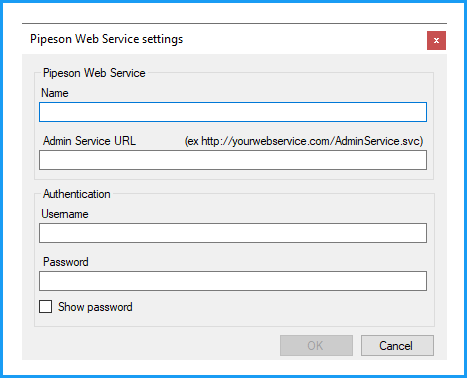
The first time you start the Pipeson Data Manager you will get configuration window where you need to type the Pipeson Web Service address, username and password that are set in the “Web.config” of the Pipeson Web Service. This information is provided by your IT department or Pipeson.
Pipeson Data Manager will start, after you have filled in the ‘Connection information’ and clicked on the Ok button.